Blijf op de hoogte!
Meld je aan voor de nieuwsbrief en blijf op de hoogte van de laatste updates en belangrijk nieuws rechtstreeks in je inbox.
Geen spam. Je kunt je op elk moment afmelden.
Meld je aan voor de nieuwsbrief en blijf op de hoogte van de laatste updates en belangrijk nieuws rechtstreeks in je inbox.
Geen spam. Je kunt je op elk moment afmelden.
Want to learn how to install SQL Server Developer Edition and SQL Server Management Studio (SSMS) for free? Whether you’re a developer or someone eager to get started with SQL, this guide will walk you through installing the free, full-featured SQL Server Developer Edition 2022. In just a few steps, you’ll have everything set up and running smoothly. No advanced IT skills required!
Ready to dive in? Let’s get started.
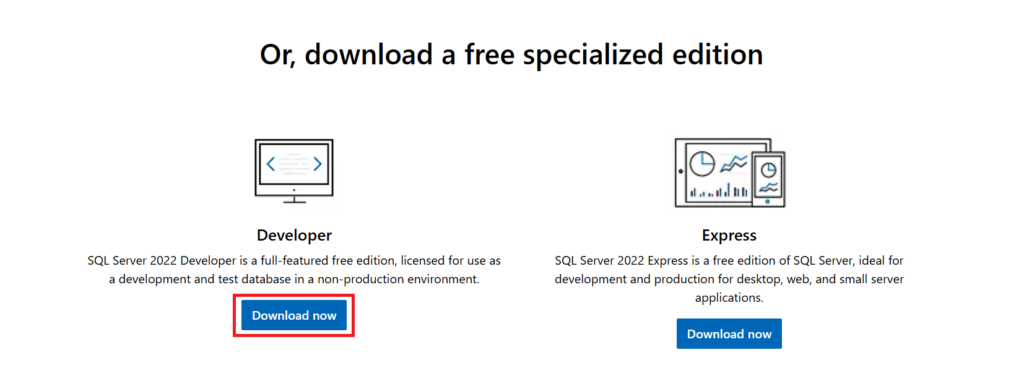
To kick things off, head over to the official Microsoft website and navigate to the SQL Server Downloads page. Scroll down until you find the “Developer” edition, a full-featured free version designed for development and testing purposes. To start the download, click on the “Download now” button.
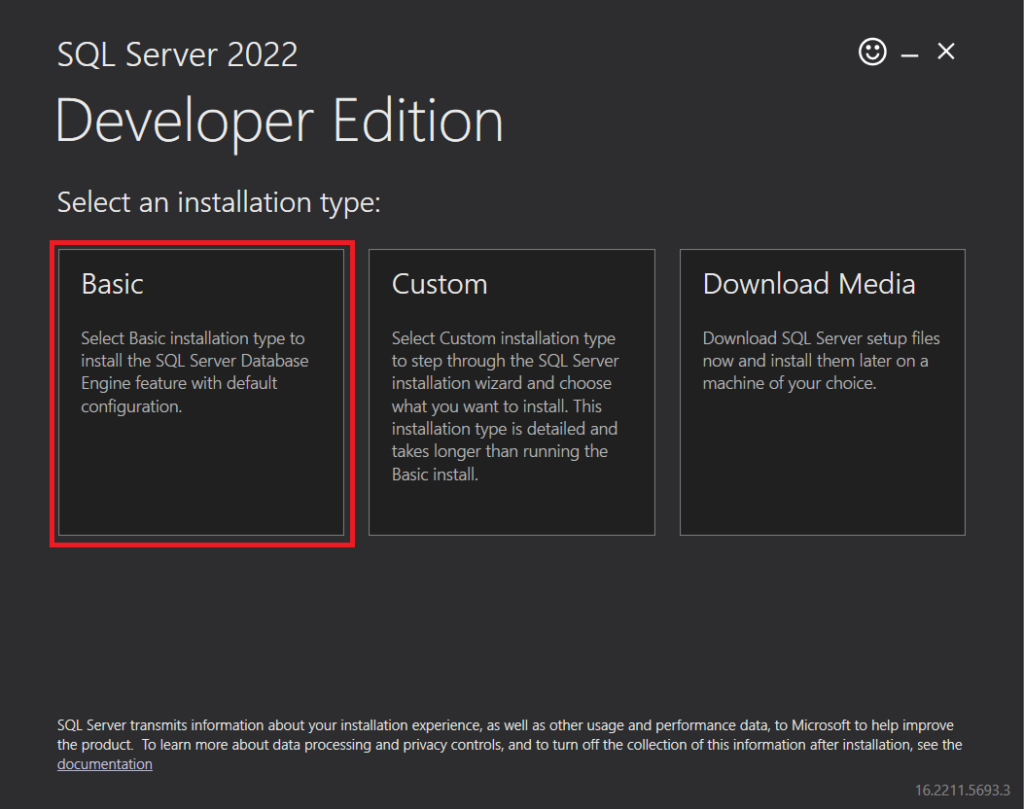
Once it’s done downloading, go ahead and run the installation file. You’ll be prompted to choose between three installation types. Select “Basic.” Agree to the license terms and proceed. The installation process might take a few minutes. Once it’s done, you’ll see a summary screen confirming the success of the installation.
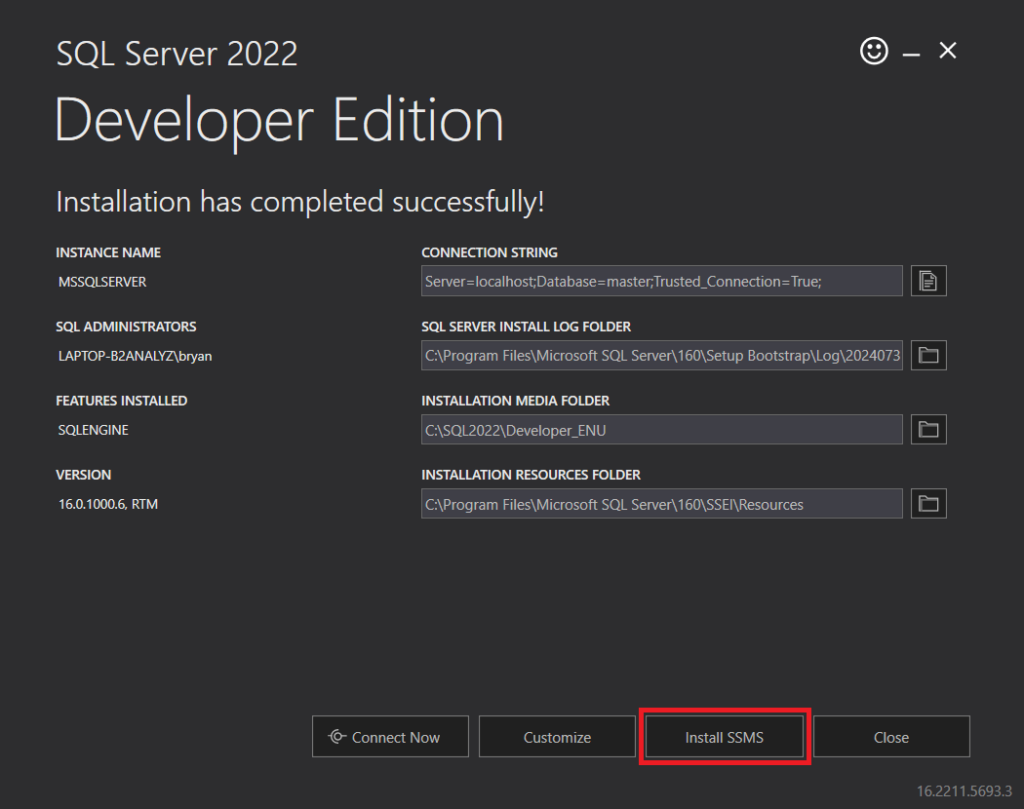
Now that you’ve got SQL Server Developer 2022 installed, it’s time to install SQL Server Management Studio (SSMS). Look for the “Install SSMS” button on the summary screen from the previous step. If you’ve already closed that window, no worries. Just navigate to the official SSMS Download page on Microsoft’s website.
Scroll a little bit down and click on “Download SQL Server Management Studio (SSMS)”.

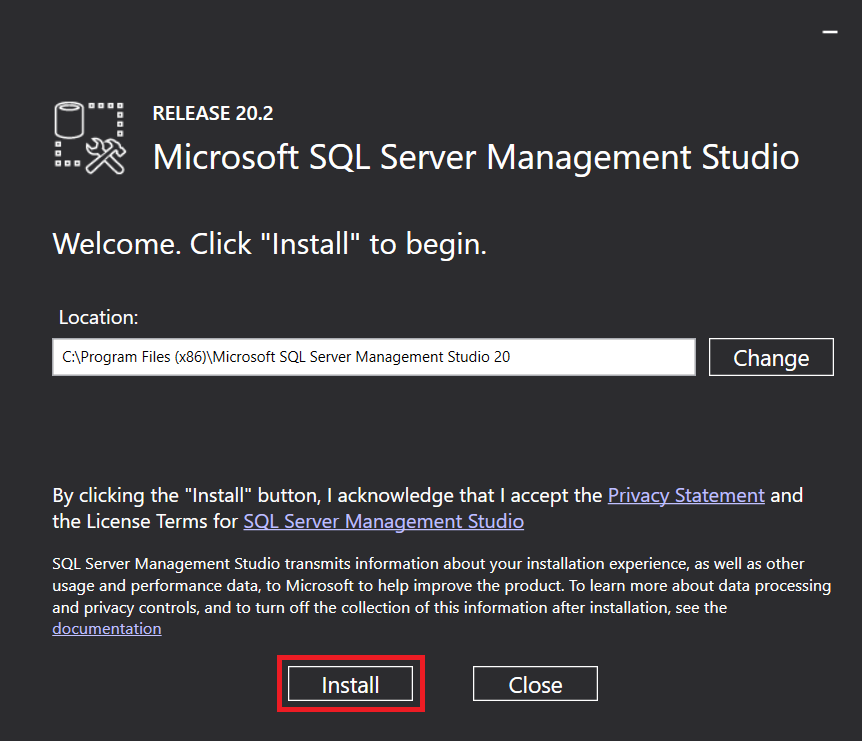
Once the download finishes, run the installation file and click on the “Install” button. The installation process is simple and requires minimal input. Once it’s done, you’ll find SQL Server Management Studio in your Start menu.
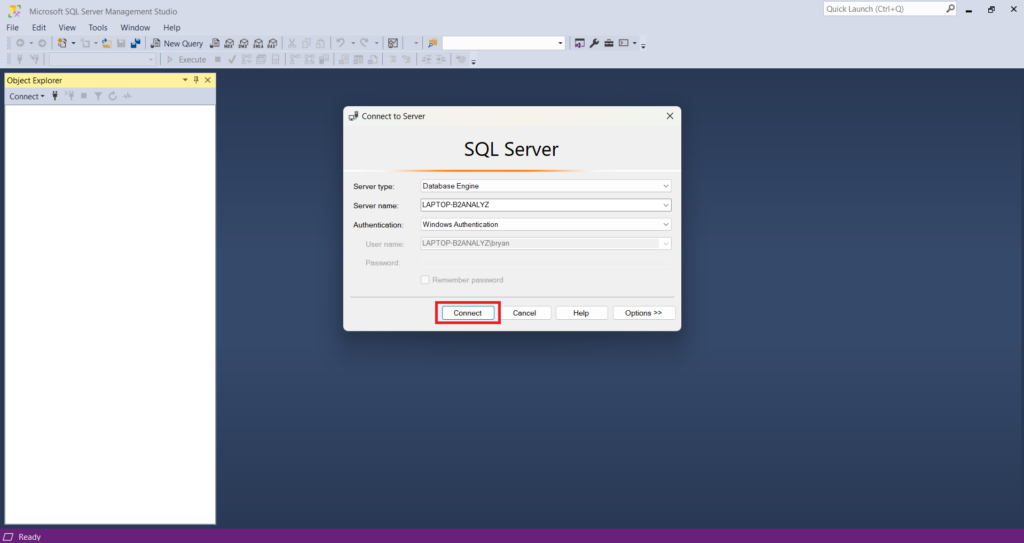
With SQL Server Developer 2022 and SSMS now installed, the final step is to connect SSMS to your SQL Server instance. Start by launching SQL Server Management Studio from your Start menu. A “Connect to Server” window should pop up automatically. Click on the “Connect” button.
If everything works, you’ll be taken to the main SSMS interface. If you run into any issues, make sure your SQL Server instance is selected under “Server name.” This will usually be your computer’s name. Still having trouble? Try selecting “Trust server certificate” under the “Options” button. This can often resolve connection issues.
And that’s it! You’ve successfully installed SQL Server Developer Edition 2022 and SQL Server Management Studio (SSMS) on your machine. Want to learn how to add a free sample database to your SQL Server instance? Check out my next post, where I’ll walk you through downloading and restoring the AdventureWorks database to SQL Server.

 NL
NL  EN
EN